For research where every answer must come from your own sources, with citations you can click, NotebookLM is the better tool. For thinking and drafting around a project, where your files plus web search and Gemini's tools help, notebooks in the Gemini app are better. The good news: in the NotebookLM vs Gemini notebooks choice, you don't have to commit. They share the same notebooks, so a notebook you build in one shows up in the other.
A quick note on names. In July 2026 Google renamed NotebookLM to Gemini Notebook. It is still a separate app, now at notebook.google.com, and old NotebookLM links redirect there. "Gemini notebooks" (lowercase) are the project spaces inside the regular Gemini app at gemini.google.com. This post uses "NotebookLM" for the standalone app, since most people still search for it that way. Everything below is as of November 2026.
Both are free with a Google account, and the paid tiers are the same Google AI plans (US prices: AI Plus $4.99 a month, AI Pro $19.99, Ultra from $99.99).
Sources per notebook: 50 on the free plan, 100 on Google AI Plus, 300 on AI Pro, up to 600 on Ultra. Because the notebooks are shared, this limit is the same in both apps.
Notebooks: the free plan allows up to 100.
Per source in NotebookLM: up to 500,000 words or 200 MB.
Usage in NotebookLM: compute-based, refreshing every five hours up to a weekly limit. Check it in Settings → Usage. Plus doubles the limits, Pro gives four times more.
Open the sidebar, and under Notebooks click New notebook. Type what you're working on and pick a type: Organize your ideas for a normal project, or Study and learn. Then click Add sources.
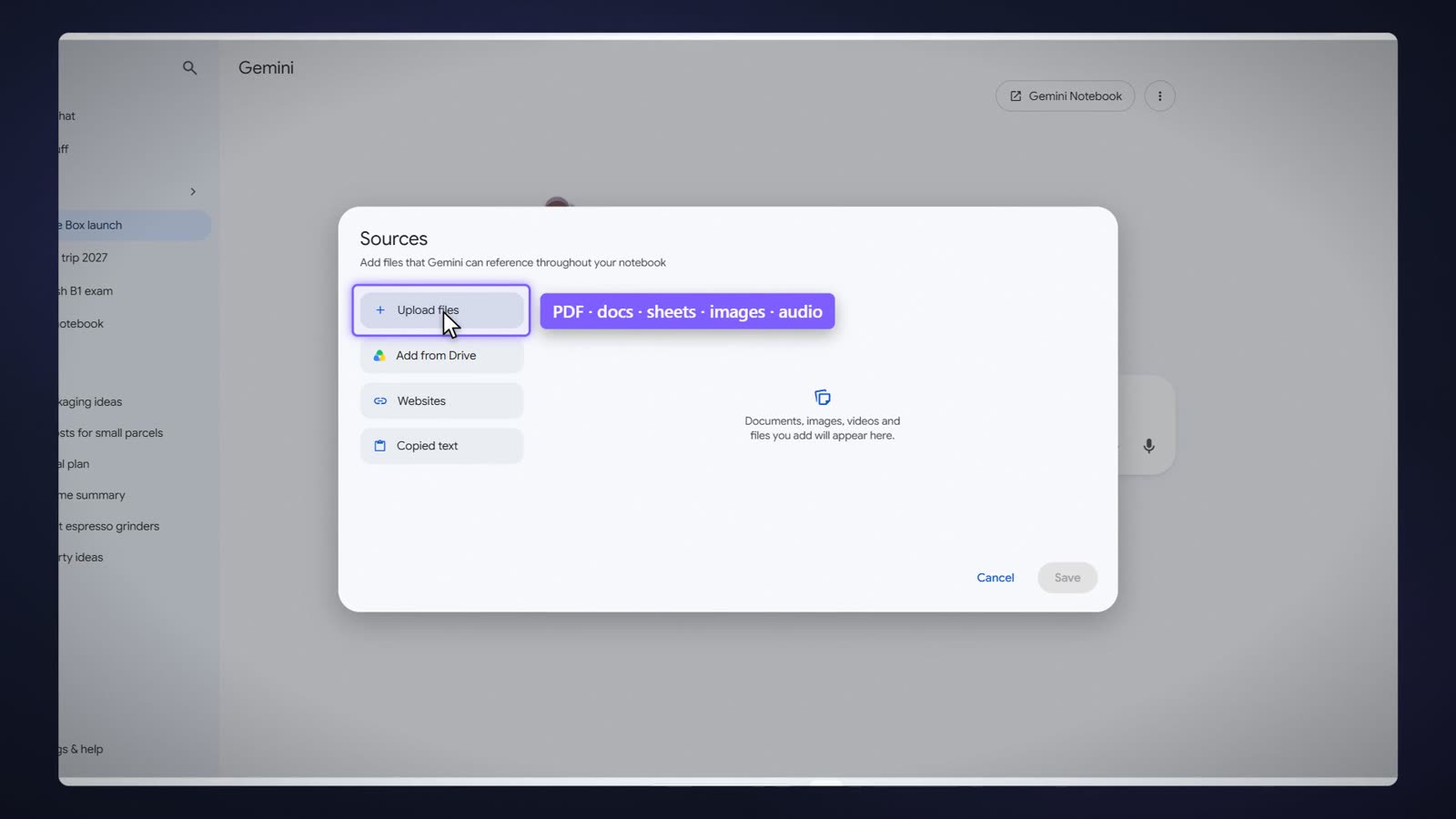
There are four ways in: Upload files (PDFs, documents, spreadsheets, images, audio), Add from Drive, Websites and Copied text. You can't add another notebook as a source. Keep your Gemini history turned on: without it, notebook memory, Drive sources and saving chats into a notebook don't work.
On the home page click New notebook, then Add sources. It takes PDFs, Word, PowerPoint, text, markdown, e-books, images and audio, which it transcribes. It also takes web pages and YouTube videos (transcript only, so the video must be public with captions). Google Docs, Slides and Sheets from Drive stay in sync when the original changes.
NotebookLM can also find sources for you. Type a topic in the search box at the top of the Sources panel, choose Web or Drive, then Fast Research for a quick list or Deep Research for a full report you can import with its sources. Deep Research is 18+, and imported results count toward your source limit.
Once you have five or more sources, NotebookLM sorts them into topics. Only the ticked sources are used in chat and in the Studio.
Gemini notebooks answer from your files first, but notebook chats can also use web search and Gemini's tools. That is useful when you want your interview notes compared with today's prices online. It also means answers can mix in web results, so ask which source a fact came from.
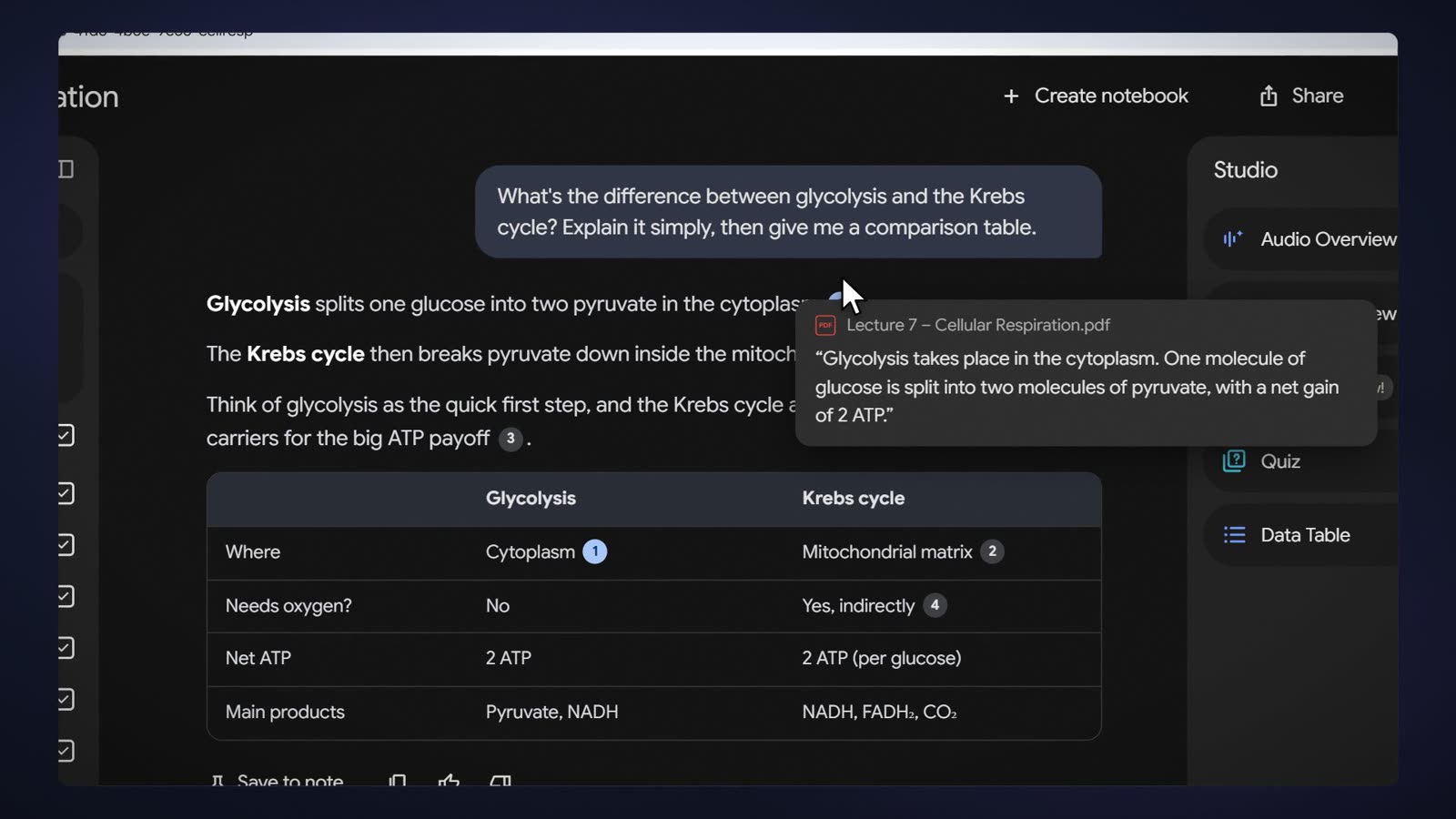
NotebookLM answers from your material. Small numbers in the answer are citations: hover to read the exact quote, click to jump to that spot in the source. If the answer isn't in your sources, it tells you instead of making something up.
For strict, checkable research (a thesis, a report, exam prep), NotebookLM's source-only answers and citations are the safer choice. For working through a project where outside information helps, Gemini notebooks are more flexible.
Both let you tell the AI how to behave, per notebook.
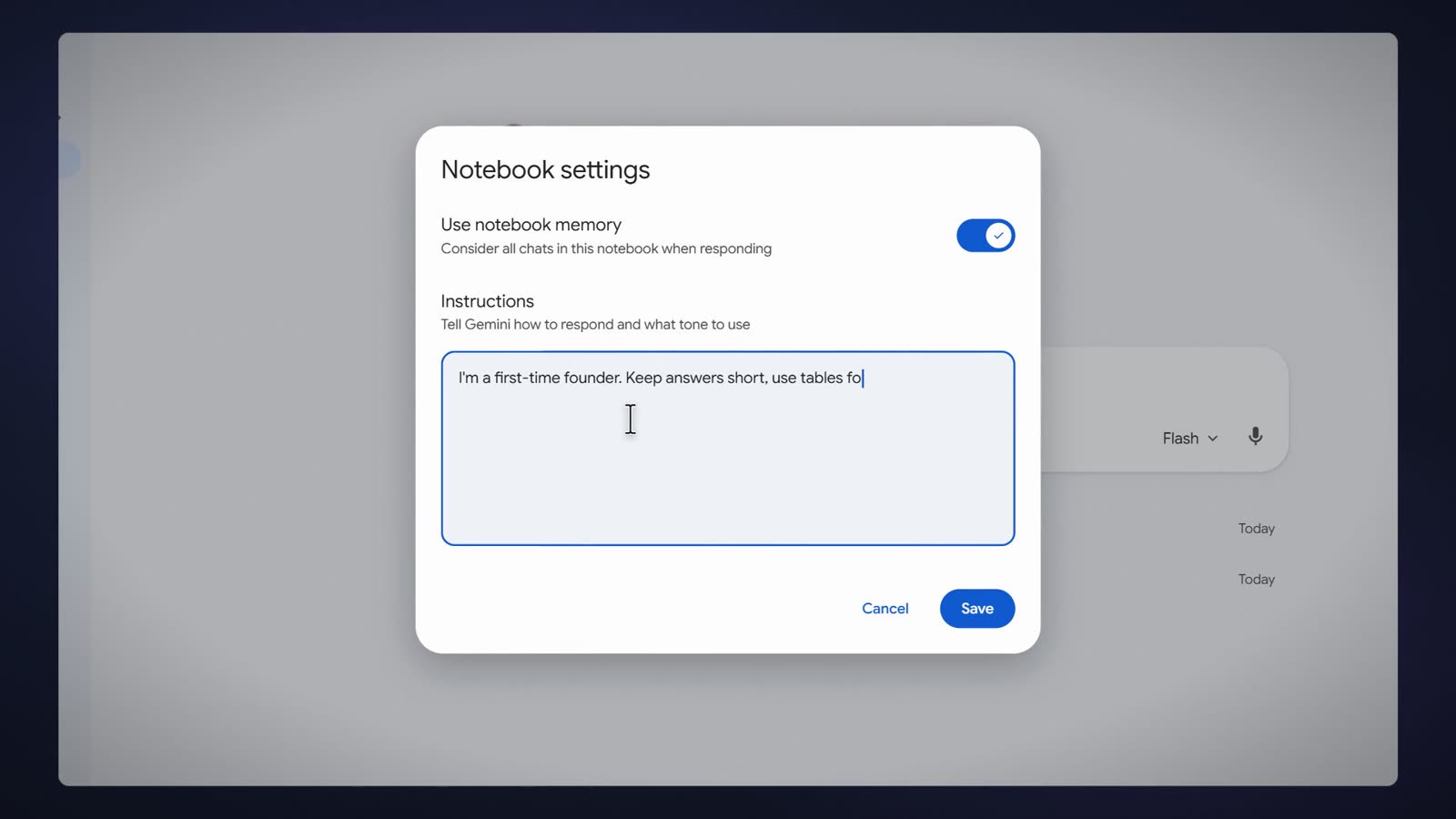
Gemini app: open the three dots at the top, then Notebook settings. Use notebook memory makes Gemini consider all chats in the notebook when it responds. Instructions is a brief for this project. These instructions also apply in Gemini Notebook.
NotebookLM: open the three dots at the top and choose Configure Chat. Default is for general research, Learning Guide acts like a patient tutor, and Custom lets you write your own role and goal. You can also pick shorter or longer responses. The setting is saved per notebook.
Here NotebookLM has a clear lead, because the Studio formats only exist there.
The Studio panel turns your sources into:
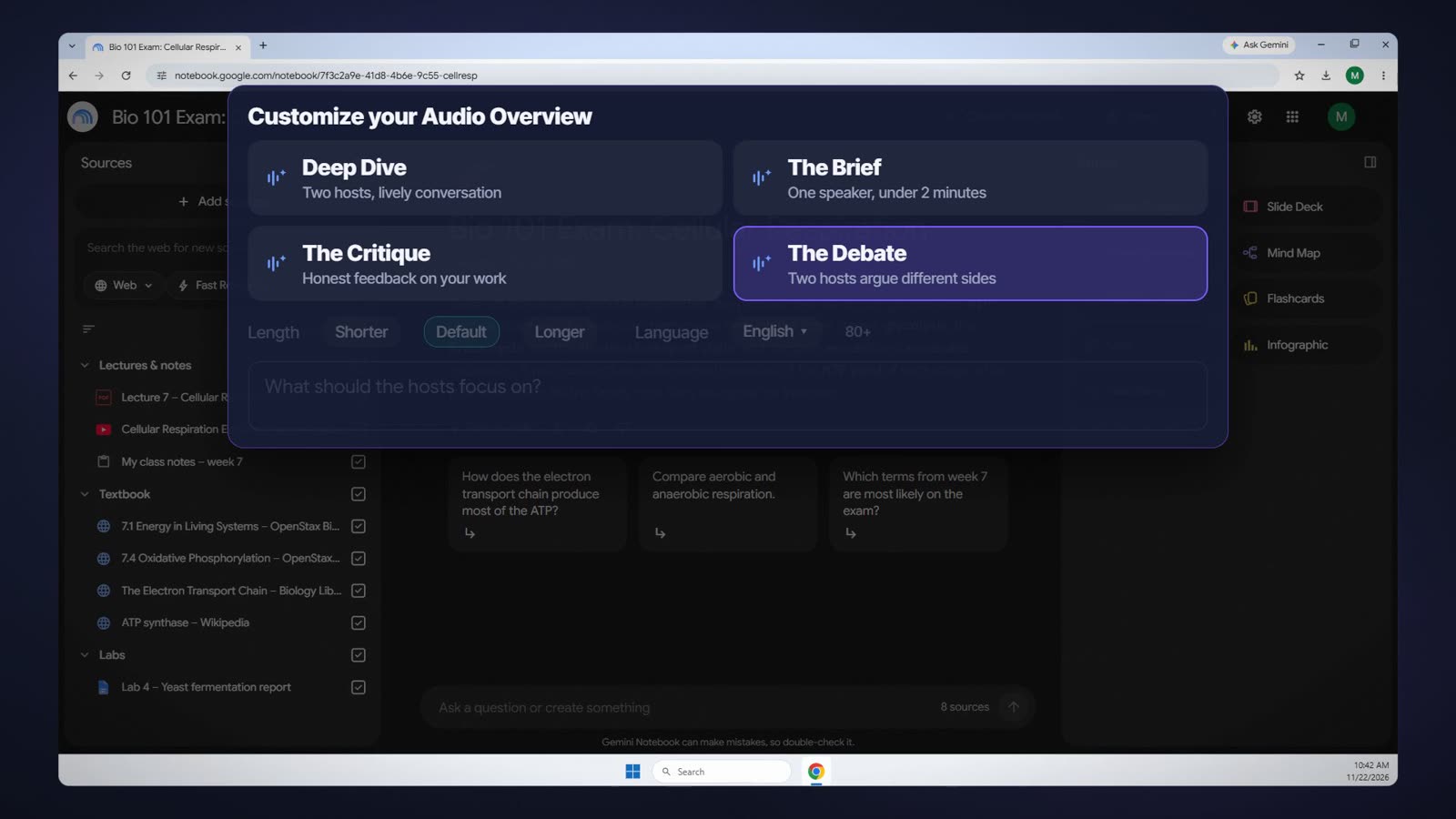
Audio Overview: Deep Dive, The Brief, The Critique or The Debate, in 80+ languages, with an interactive mode (English only) where you can ask the hosts a question.
Video Overview: Explainer, Short (about 60 seconds) or Cinematic (adults, English).
Slide Deck you can revise and download as PDF or PowerPoint, plus Infographic and Mind Map.
Flashcards, Quiz, Reports (export to Google Docs), Data Table (export to Google Sheets) and sites, interactive study tools made with "make me a site".
Gemini notebooks don't make these. If you need one, open the same notebook in NotebookLM.
What the Gemini app does better is drafting from inside the project. Ask for a one page business plan using all your sources, and one short prompt is enough. You can also type @Gemini Notebook in any normal Gemini chat to create a notebook, add something to one, list sources, or ask what your notebooks say about a topic, without opening the notebook. In Europe you may need to turn it on under Settings → Connected Apps.
Gemini app: a notebook that contains Gemini chats is private and can't be shared.
NotebookLM: click Share. Add people as viewers or editors, up to 50 on a personal account. You can share only the chat view, make the notebook public with a link, and decide whether others can make a copy. Your chat history always stays private.
For a team project, build and share the notebook from NotebookLM.
Writing a paper, report or thesis where every claim must be backed up: NotebookLM. Answers stay inside your sources and every point has a citation.
Studying for an exam: NotebookLM for Learning Guide, flashcards, quizzes and Audio Overviews. The Gemini app's Study and learn notebook is a lighter option with quizzes, lessons and progress tracking.
Running a project like a launch, a trip or a job hunt: a Gemini notebook. Your files, memory, instructions, web search and tools in one place, and you can pull in old chats with Add to notebook.
You live in the Gemini app all day: Gemini notebooks plus @Gemini Notebook keep everything one chat away.
Working with a team: NotebookLM, because notebooks with Gemini chats can't be shared.
You need a podcast, video, slides or infographic: NotebookLM. The Studio is only there.
Most people end up using both on the same notebook: Gemini to think and draft, NotebookLM to check citations and make study or presentation material.
They share the same notebooks. NotebookLM was renamed Gemini Notebook in July 2026 and is still a separate app. Sources, names and instructions sync between it and notebooks in the Gemini app.
Not in the Gemini app. Audio Overviews, Video Overviews, infographics and slide decks are made in Gemini Notebook (NotebookLM), using the same notebook.
NotebookLM answers from your sources and tells you when something isn't in them. Gemini notebooks can also use web search, so ask which source each fact came from and check the important ones.